
Before you start
Who’s doing Lab 06?
This lab is open any time. Enter your name and student ID to start. Your work is saved.
By the end you will
- Explain how an app keeps data — memory or storage, phone or cloud, key-value or database, files — and choose the right place for each piece of data
- Save and read data with AsyncStorage (as JSON text) and with MMKV, and say when to choose each one
- Create a SQLite table on the phone and run INSERT, SELECT, UPDATE and DELETE with ? parameters
- Keep tokens in SecureStore, and explain why AsyncStorage is not safe for secrets
- Connect an app to Supabase with the project URL and the publishable key, and read, add, change and delete rows
- Upload a file to Supabase Storage and show it with a public or a signed URL
- Explain Supabase Auth sessions and Row Level Security, and write a policy
- Create a Supabase project and find your way in its dashboard: API keys, Table Editor, SQL Editor, Authentication, Storage, Realtime and Logs
- Show new rows on the phone the moment they are added, with Supabase Realtime
- Read a Supabase error code and find the fix
- Keep data available offline and send it to the cloud later, without duplicates
You need
- Lab 05 completed: fetch, async / await and JSON
- React Native basics: components, useState, useEffect
- For Part 5: a free Supabase account (sign up at supabase.com with GitHub or an email)
Part 1: Where your app keeps data
14 min
In Lab 05 your app got data from a server. When the app closed, everything it had in its variables was gone. Storage means writing data somewhere it stays, so the app can read it again later.
What “closed” means: when the user swipes the app away, or the phone restarts, the phone ends the app. Everything the app kept in memory — its variables and every useState — is deleted. What the app wrote to the phone’s disk stays. Only deleting the app deletes its files too.
Memory
useState and variables. Fast, but it is emptied when the app closes. Use it for what the screen needs right now.
Persistent storage
Written to the phone’s disk (or a server). It is still there after the app closes and opens again.
Local storage
On this phone only. Works with no internet. Gone if the app is deleted.
Cloud storage
On a server. Every phone of the user (and other users) can reach it — but only when online.
Data also has a shape:
Key-value
One value under one name (the key): theme → dark. Simple and small. AsyncStorage and MMKV (Part 2).
A relational database
Tables of rows and columns that you search with SQL: “tasks not done, newest first”. SQLite (Part 3) and Postgres in Supabase (Part 5).
File storage
Whole files: a photo, a PDF. They are bytes, not rows. Supabase Storage (Part 5).
Two more words you will meet in every part:
- Synchronous means the answer comes back at once (MMKV). Asynchronous means the answer comes later, so you write
await(AsyncStorage, SQLite, SecureStore, Supabase). - Storage keeps text, not JavaScript objects. Serialize = turn an object into text with
JSON.stringify. Deserialize = turn the text back into an object withJSON.parse.
Press Save some data, then try the other buttons. Click any place to read what it is for.
On the phone
In the cloud (Supabase)
- What it holds
- Reading it
- Lasts
- Secret?
- Other phones see it?
- Use it for
| What | On the phonelocal | In the cloudSupabase |
|---|---|---|
| Works with no internet | Yesbetter here | No |
| Speed | Very fast: no networkbetter here | A request over the internet |
| Other phones see it | No | Yesbetter here |
| Deleting the app | Deletes the data | The data staysbetter here |
| Who protects it | The phone (and you, for secrets) | The server: sign-in and Row Level Security |
Which one would you use?
- The user’s profile must be the same on their phone and their tablet.
Only the cloud is shared between devices.
- The app must show today’s tasks on the bus, with no signal.
Only data on the phone is there without a connection. Part 6 keeps a copy on the phone and syncs it.
- Remember that the welcome screen was already seen.
A small setting of this phone: no server needed.
The same app on a real Android phone. Left: after pressing the button three times. Right: after closing the app and opening it again.
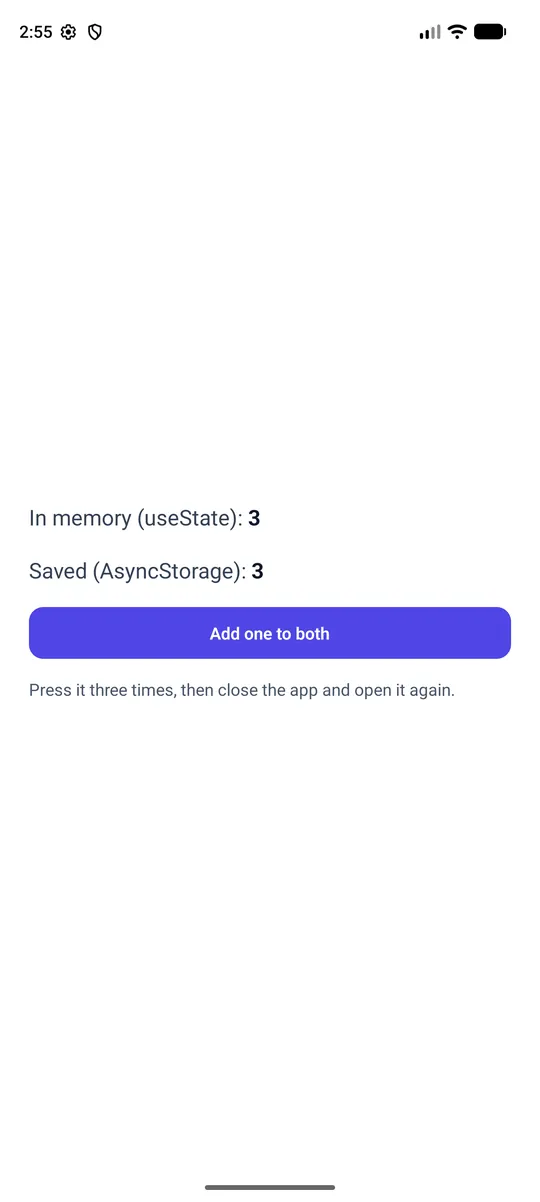
Before closing
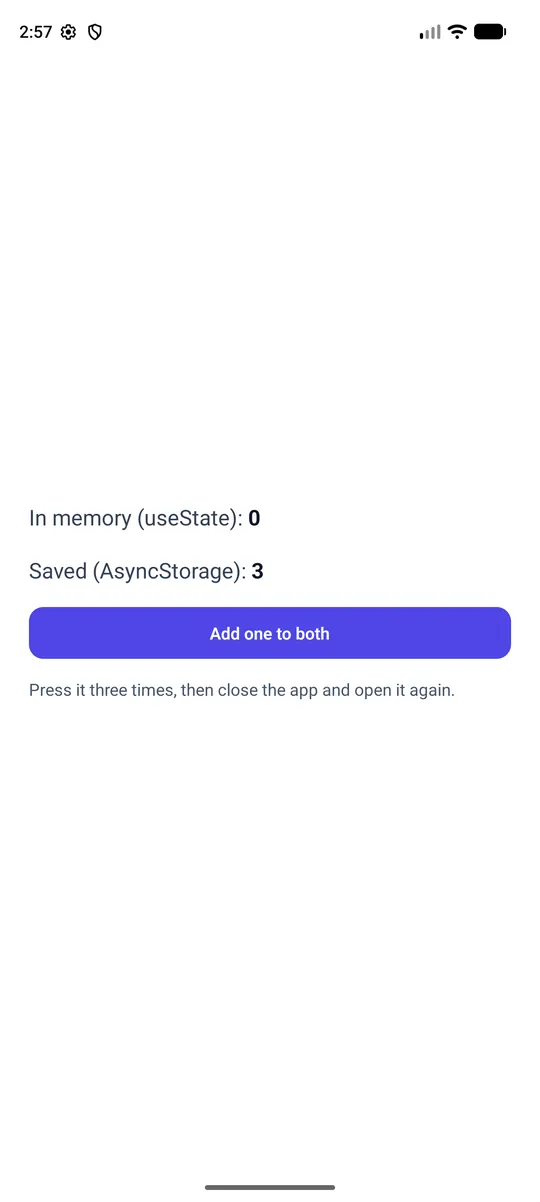
After opening it again
useState started again from 0. The number in AsyncStorage was read back from the disk: still 3.
Checkpoint
You can say, for any piece of data, whether it belongs in memory, key-value storage, a database, secure storage, files, or the cloud — and why.
Part 2: Key-value storage: AsyncStorage and MMKV
30 min
AsyncStorage saves text under a key, on the phone. It exists because React Native has no built-in way to keep small data between launches. It is asynchronous (every call needs await), it is not encrypted, and it is included in Expo Go.
import AsyncStorage from '@react-native-async-storage/async-storage';

await AsyncStorage.setItem('settings', JSON.stringify({ dark: true, size: 18 })); // save (object → text)
const text = await AsyncStorage.getItem('settings');           // read: the text, or null
const settings = text ? JSON.parse(text) : null;                // text → object
await AsyncStorage.mergeItem('settings', JSON.stringify({ size: 20 })); // update one field
await AsyncStorage.removeItem('settings');                      // remove one key
await AsyncStorage.clear();                                     // remove every key of this app
const keys = await AsyncStorage.getAllKeys(); // which keys existIn your app: an object
{ dark: true, size: 18 }JSON text (a string)
—On the phone: AsyncStorage
| key | value |
|---|---|
| settings | (nothing yet) |
const settings = { dark: true, size: 18 };
const text = JSON.stringify(settings);        // object → text
await AsyncStorage.setItem('settings', text); // the phone keeps text
const saved = await AsyncStorage.getItem('settings'); // text, or null
const back = JSON.parse(saved);               // text → object
Press Save: watch the object become text, then a row on the phone.
Where is it on the phone? On Android, AsyncStorage keeps every key in one small SQLite database file named RKStorage, in the app’s private folder. On iOS it is a file in the app’s folder. Other apps cannot open these folders. But anyone who copies the app’s files (from a backup, or a rooted phone) can read them, because the values are not encrypted. In Expo Go, each project gets its own storage, so two projects never see each other’s keys.
Reading and saving can fail (a full disk, a broken value), so put them in try / catch:
try {
  const text = await AsyncStorage.getItem('settings');
  if (text) setSettings(JSON.parse(text)); // JSON.parse throws if the text is broken
} catch (error) {
  console.warn('Could not load the settings', error); // the app keeps its defaults
}
Use AsyncStorage for
- settings: theme, language, text size
- small flags: “seen the welcome screen”
- a small cache of the last screen
Do not use it for
- tokens and passwords: it is a plain file (Part 4)
- hundreds of rows you search or sort (Part 3)
- anything other phones must see (Part 5)
The settings screen of Exercise 3 on a real phone, after it was closed and opened again. The dark theme and the text size were read back from AsyncStorage when the app started:
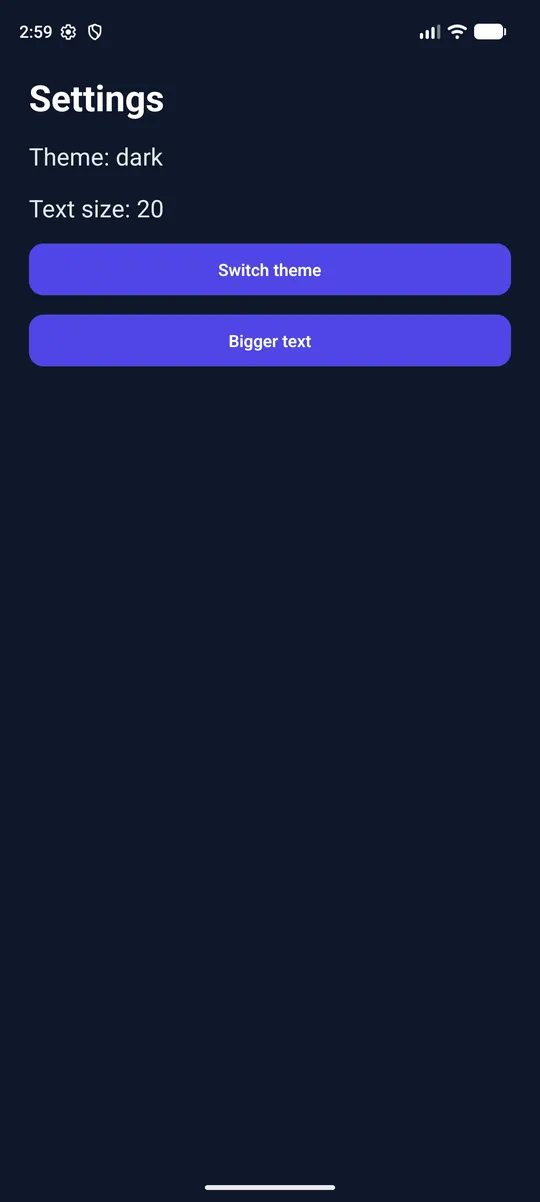
- The theme, read back with
getItemandJSON.parsewhen the app starts - The text size: a number inside the same JSON text
MMKV is another key-value store. It is written in C++, it reads and writes synchronously (no await), and it keeps types: a number comes back as a number. It is much faster than AsyncStorage when an app reads values very often. It is native code, so it needs a development build — it does not run in Expo Go.
This is what Expo Go shows when an app uses MMKV. Expo Go is a ready-made app with a fixed set of native code, and MMKV’s native part (NitroModules) is not in it. A development build is your own version of that app, built on your PC, with every native package your project needs:
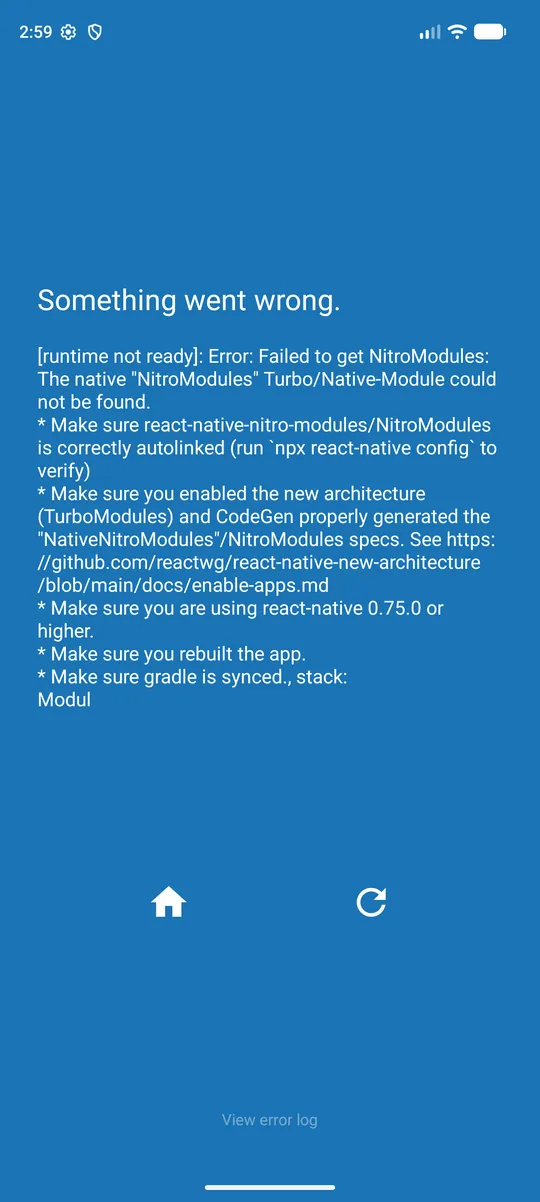
Read the first line of the error: Failed to get NitroModules … could not be found. The native part is missing, so the fix is a development build, not a change in your code.
| What | AsyncStorageExpo Go | MMKVdevelopment build |
|---|---|---|
| Reading | Later: await getItem(key) | At once: getBoolean(key)better here |
| Types | Text only (JSON for objects) | Text, numbers, booleans, bytesbetter here |
| Speed | Fine for a few reads | Much faster for many readsbetter here |
| Setup | Works in Expo Gobetter here | Needs a development build |
| Encryption | None | Optional encryptionKey (but the key must be stored safely) |
| Secrets (tokens) | No | No: use SecureStore |
AsyncStorage
const text = await AsyncStorage.getItem('dark');
const dark = text === 'true';
await AsyncStorage.setItem('dark', String(!dark));
MMKV
const storage = createMMKV();
const dark = storage.getBoolean('dark') ?? false;
storage.set('dark', !dark);
Which one would you use?
- A class project that you test in Expo Go, saving the theme.
AsyncStorage works in Expo Go; one setting does not need MMKV’s speed.
- A reading app that reads the font size and position on every page turn.
Many reads, and synchronous reads keep the screen smooth.
Checkpoint
Settings survive a restart: saved as JSON text with AsyncStorage, or as typed values with MMKV. Neither one is a place for secrets.
Part 3: A database on the phone: SQLite
27 min
A database keeps data in tables. A table has columns (the fields, each with a type) and rows (one row per thing, for example one task). The primary key is a column whose value is different in every row, usually id, so one row can always be found.
Key-value storage is not enough when the data is a list you search. To show “tasks not done, newest first” with AsyncStorage you would load the whole list, JSON.parse it, filter and sort it in JavaScript, and save the whole list again after every change. A database does it with one query, and changes one row at a time.
SQLite is a database in one file on the phone. You talk to it with SQL, a language of short statements:
Run one statement at a time
| What | Key-value (AsyncStorage) | SQLite |
|---|---|---|
| Shape | One value per key | Tables of rows and columnsbetter here |
| Find some items | Load everything, filter in JavaScript | SELECT … WHERE …better here |
| Change one item | Save the whole list again | UPDATE … WHERE id = ?better here |
| Setup | No setupbetter here | CREATE TABLE first |
| Best for | A few settings | Many rows of the same shape |
Which one would you use?
- Save the user’s language.
One value under one key.
- A notes app: 500 notes, searched by title and sorted by date.
Many rows, searched and sorted: a database query.
Every column has a type. SQLite has four: INTEGER (whole numbers), REAL (decimals), TEXT and BLOB (bytes). There is no true/false type: store 1 for true and 0 for false in an INTEGER column, like done below. Dates are stored as TEXT, for example 2026-11-16T09:00:00Z.
In Expo, use expo-sqlite. It is included in Expo Go.
The database code belongs in its own file, db.ts. Screens only call its functions (addTask, getTasks…) and never write SQL themselves.
1import * as SQLite from 'expo-sqlite';
2
3export const dbPromise = SQLite.openDatabaseAsync('tasks.db');
4
5export async function setup() {
6  const db = await dbPromise;
7  await db.execAsync(`
8    PRAGMA journal_mode = WAL;
9    CREATE TABLE IF NOT EXISTS tasks (
10      id INTEGER PRIMARY KEY AUTOINCREMENT,
11      title TEXT NOT NULL,
12      done INTEGER NOT NULL DEFAULT 0
13    );
14  `);
15}
16
17export async function addTask(title: string) {
18  const db = await dbPromise;
19  const result = await db.runAsync('INSERT INTO tasks (title) VALUES (?)', title);
20  return result.lastInsertRowId;
21}
22
23export async function getOpenTasks() {
24  const db = await dbPromise;
25  return db.getAllAsync('SELECT * FROM tasks WHERE done = ? ORDER BY id DESC', 0);
26}
27
28export async function addMany(titles: string[]) {
29  const db = await dbPromise;
30  await db.withTransactionAsync(async () => {
31    for (const title of titles) {
32      await db.runAsync('INSERT INTO tasks (title) VALUES (?)', title);
33    }
34  });
35}
openDatabaseAsync opens the file tasks.db (and creates it the first time). Every function waits for this one connection.
- lines 3–3
openDatabaseAsyncopens the file tasks.db (and creates it the first time). Every function waits for this one connection. - lines 5–15
execAsyncruns SQL that needs no values. WAL mode makes SQLite faster (Expo recommends it).CREATE TABLE IF NOT EXISTSmakes the table once and does nothing the next time. - lines 17–21
runAsyncruns a statement that changes data. Each?is filled with the value after the SQL — never paste the title into the SQL text. The result haslastInsertRowId(the new id) andchanges(how many rows changed). - lines 23–26
getAllAsyncreads: it returns an array of objects, one per row.getFirstAsyncreturns only the first row (ornull). - lines 28–35 A transaction: every task of the list is saved together, or — if one INSERT fails — none is. Use it when changes belong together.
The tasks app of Exercise 6 on a real phone. Each line on the screen is one row of the tasks table in the file tasks.db:
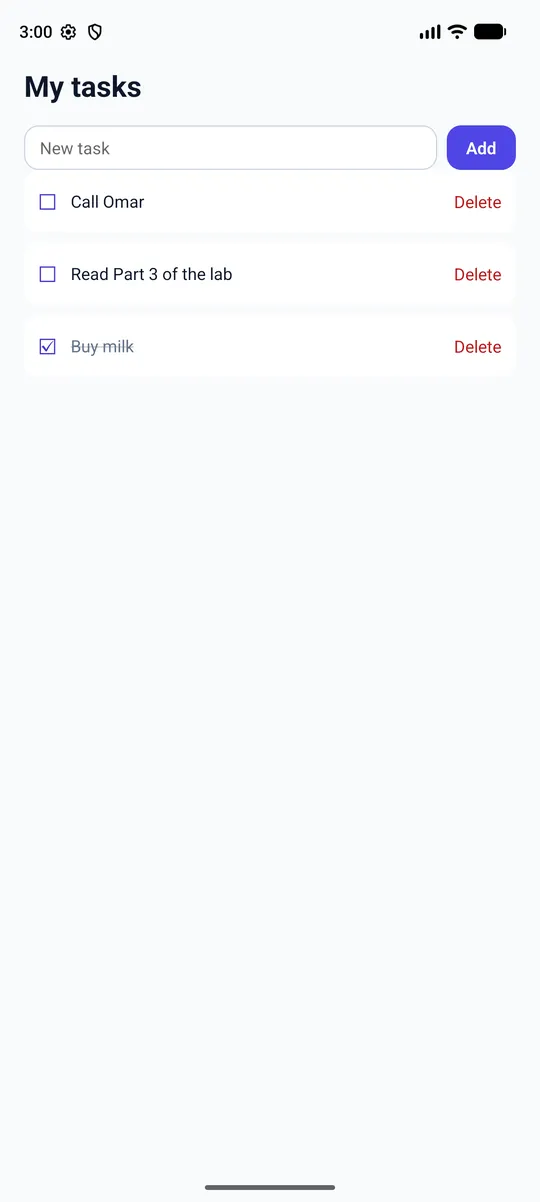
- Add runs
runAsync('INSERT INTO tasks (title) VALUES (?)', title): one new row - Ticking sets
done = 1with oneUPDATE … WHERE id = ?
Close the app and open it again: the list is read back from tasks.db with getAllAsync.
Checkpoint
Your tasks live in a real SQLite table on the phone. You can explain tables, rows, columns, the primary key, ? parameters, WHERE, and why a transaction saves all or nothing.
Part 4: Secrets: secure storage
20 min
Sensitive data is data that lets someone act as the user or harms them if it leaks: tokens, keys, personal information. When a user signs in, the server gives the app tokens:
Access token
Proof of who the user is, sent with every request. It stops working after a short time (Supabase: about 1 hour).
Refresh token
Used to get a new access token without asking for the password again. Whoever has it can stay signed in as the user.
AsyncStorage keeps them as plain text. Encryption at rest means the data is stored encrypted, so the file is unreadable without a key. On iOS the Keychain, and on Android the Keystore, keep that key inside the phone’s secure hardware. Expo SecureStore uses them for you.
AsyncStorage · a plain file in the app’s folder
(empty)
SecureStore · Keychain (iOS) / Keystore (Android)
(empty)
The key that opens it stays inside the phone’s secure hardware. Only your app can ask for the value.
Save the token in both places, then press Someone copies the app’s files.
| What | AsyncStorage | SecureStore |
|---|---|---|
| On disk | Plain text | Encryptedbetter here |
| Size | Fine for settings and small databetter here | Small values only (some iOS versions refused values above about 2048 bytes) |
| Keys | Any text | Letters, numbers, ., -, _ |
| Use it for | Settings | Tokens and keysbetter here |
AsyncStorage
await AsyncStorage.setItem('token', token);SecureStore
await SecureStore.setItemAsync('auth.token', token);Which one would you use?
- The refresh token after sign-in.
A token is a secret: it must be encrypted.
- The app’s language.
Not secret, and SecureStore is meant for a few small secrets.
import * as SecureStore from 'expo-secure-store';

await SecureStore.setItemAsync('auth.token', token);            // save (encrypted)
const token = await SecureStore.getItemAsync('auth.token');     // read: the value, or null
await SecureStore.deleteItemAsync('auth.token');                // delete (sign out)
// values are strings: JSON.stringify an object first. Keep them small.
react-native-keychain does the same job with more options (for example asking for the fingerprint). It is native code, so it needs a development build:
import * as Keychain from 'react-native-keychain';

const options = { service: 'com.example.session' };
await Keychain.setGenericPassword('session', token, options);
const credentials = await Keychain.getGenericPassword(options); // false, or { username, password }
await Keychain.resetGenericPassword(options);
Common mistakes
- a token in AsyncStorage
console.log(token): logs are copied to tools and crash reports- a secret key in
EXPO_PUBLIC_…: it is built into the app - saving the password “to sign in again”
What secure storage does not do
- it protects the token on the phone, at rest
- it does not decide what the user may do: the server must check every request
- in Part 5, Row Level Security is that check
On a real phone the app reads back the same token from both places: the difference is only on the disk. AsyncStorage wrote it as plain text; SecureStore wrote unreadable bytes and keeps the key in the Android Keystore:
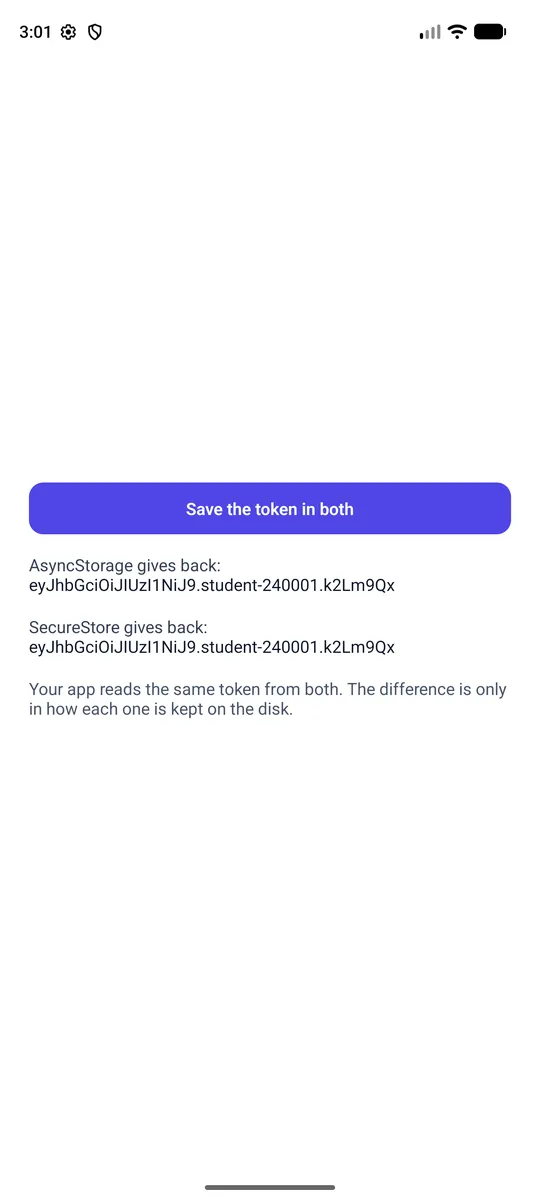
Your app always gets the real value back. Someone who copies the files does not: that is what “encrypted at rest” protects against.
Checkpoint
Tokens go to SecureStore with three calls, and stay out of AsyncStorage, logs and EXPO_PUBLIC_ variables. The server still checks every request.
Part 5: The cloud: Supabase
68 min
Supabase is a backend you do not have to write. One project gives you a Postgres database, Auth (sign-in), Storage (files in buckets), Row Level Security (rules inside the database that decide which rows each user may touch) and Realtime (changes sent to the phones that listen). Your app talks to it with the supabase-js library.
Every section below shows the real Supabase dashboard first, then the code, then an exercise.
Your Supabase project
The request
Choose a request above.
The answer
—
The tasks table (Mona is signed in)
- Read Part 5 of the labuser: Mona
- Buy milkuser: Mona
- Omar’s private taskuser: Omar
Each button sends one request. Watch which parts of Supabase it passes through.
A. Create your project
Start this first: a new project takes about two minutes to be ready, and you can read on meanwhile.
The words on this form:
- An organization groups your projects. A free account starts with one.
- A project is one backend: one database, one Auth, one Storage, one set of keys. One app usually needs one project.
- The database password is for connecting to Postgres directly (from a server or a database tool). The app never uses it. Press Generate a password and keep it in a password manager.
- The region is where the computer that runs your project is. Choose the one closest to your users: for Egypt, Central EU (Frankfurt).
- A free project pauses after about a week with no use. Open it in the dashboard to start it again.
- A free account can have 2 active projects. The form refuses a third: pause or delete one first (Project Settings → General).
The form also has two switches under Security: Enable Data API (on: supabase-js needs it) and Enable automatic RLS (turns Row Level Security on for every new table — a good habit).
B. Keys: publishable and secret
When the project is ready, copy two values from Project Settings → API Keys (the Connect button at the top shows them too):
Project URL
https://<project-ref>.supabase.co. Safe in the app.
Publishable key
sb_publishable_…. Made for apps: it reaches only what Row Level Security allows.
Secret key
sb_secret_… (the old name: service_role). It skips Row Level Security. Never put it in an app, a .env with EXPO_PUBLIC_, or Git.
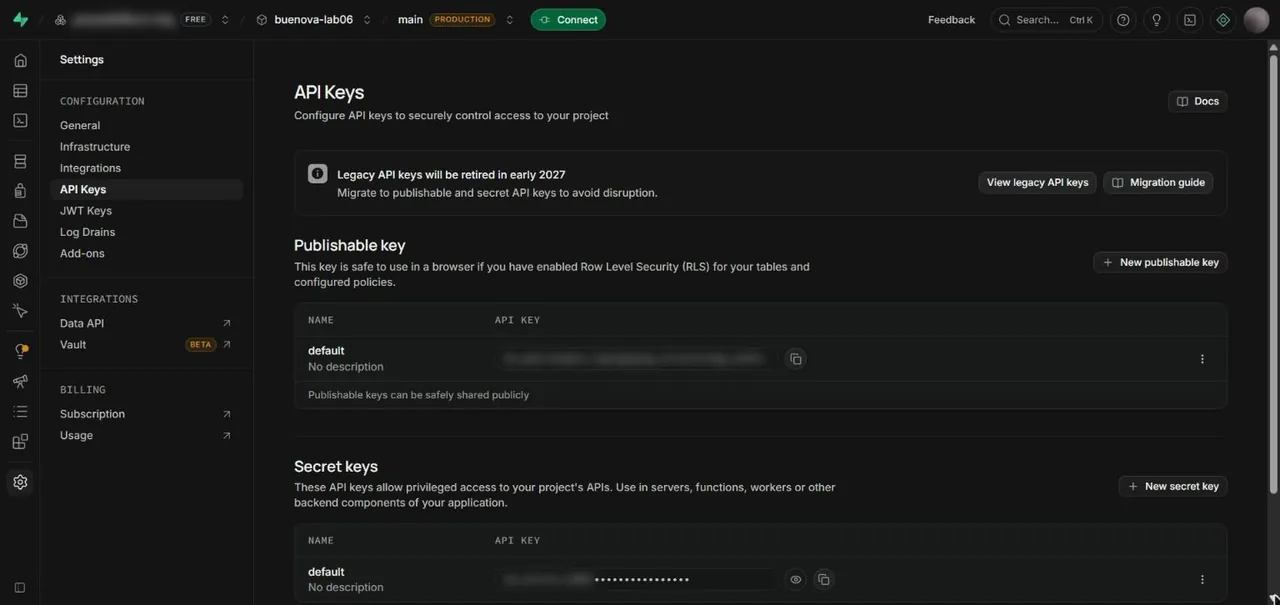
The publishable key is shown in full. The secret key stays hidden until you press its eye button: it is meant for servers only. (The project’s own values are blurred in this picture.)
The page also says Legacy API keys will be retired in early 2027: the old anon and service_role keys are being replaced by these two kinds.
Why is the publishable key safe in an app? It only says which project the request is for. It does not say who sends it. A request with only the publishable key is treated as anon (nobody signed in). What anon and signed-in users may do is decided by Row Level Security, in section F.
The two values go in a file named .env in the project folder. Expo copies every variable that starts with EXPO_PUBLIC_ into the app (restart npx expo start after you change it):
EXPO_PUBLIC_SUPABASE_URL=https://<project-ref>.supabase.co
EXPO_PUBLIC_SUPABASE_PUBLISHABLE_KEY=sb_publishable_…1import 'react-native-url-polyfill/auto'; 2import { createClient } from '@supabase/supabase-js'; 3import 'expo-sqlite/localStorage/install'; 4 5const supabaseUrl = process.env.EXPO_PUBLIC_SUPABASE_URL!; 6const supabasePublishableKey = process.env.EXPO_PUBLIC_SUPABASE_PUBLISHABLE_KEY!; 7 8export const supabase = createClient(supabaseUrl, supabasePublishableKey, { 9 auth: { 10 storage: localStorage, 11 autoRefreshToken: true, 12 persistSession: true, 13 detectSessionInUrl: false, 14 }, 15});
React Native does not have the full URL class that supabase-js uses: this line adds it.
- lines 1–1 React Native does not have the full
URLclass that supabase-js uses: this line adds it. - lines 3–3 Adds
localStorageto the phone (saved in SQLite), so supabase-js has a place to keep the session. - lines 5–6 The two values from .env. The
!tells TypeScript they are not undefined. - lines 8–15
createClientmakes one client for the whole app.persistSessionsaves the session,autoRefreshTokengets a new access token before the old one stops working, anddetectSessionInUrl: falsebecause a phone app has no web address bar.
C. Tables: Table Editor or SQL Editor
There are two ways to make a table. Both make the same table:
Table Editor
Add columns with a form: name, type, default. Good for looking at your rows and changing one by hand.
SQL Editor
Paste SQL and press Run. Good for many steps at once, and you can keep the SQL in your project (supabase/schema.sql) to run again in a new project.
In the dashboard: SQL Editor → New query, paste, Run:
1create table public.tasks (
2  id uuid primary key default gen_random_uuid(),
3  user_id uuid not null default auth.uid() references auth.users (id) on delete cascade,
4  title text not null check (char_length(title) > 0),
5  done boolean not null default false,
6  created_at timestamptz not null default now(),
7  updated_at timestamptz not null default now()
8);
uuid: a long random id, made by the database with gen_random_uuid(). In Part 6 the phone makes the id itself.
- lines 2–2
uuid: a long random id, made by the database withgen_random_uuid(). In Part 6 the phone makes the id itself. - lines 3–3 Whose task it is.
default auth.uid()fills it with the signed-in user, so the app never sends it.references auth.userslinks it to a user;on delete cascadedeletes the user’s tasks with the user. - lines 4–4
not null: a title is required.check (char_length(title) > 0): and it may not be empty (error code 23514). - lines 5–5 Postgres has a real
booleantype (SQLite used 0 and 1). - lines 6–7
timestamptz: a date and time with its time zone.default now()fills it in.
Supabase checks the SQL before it runs. A create table without Row Level Security gets this warning. Choose Run and enable RLS:
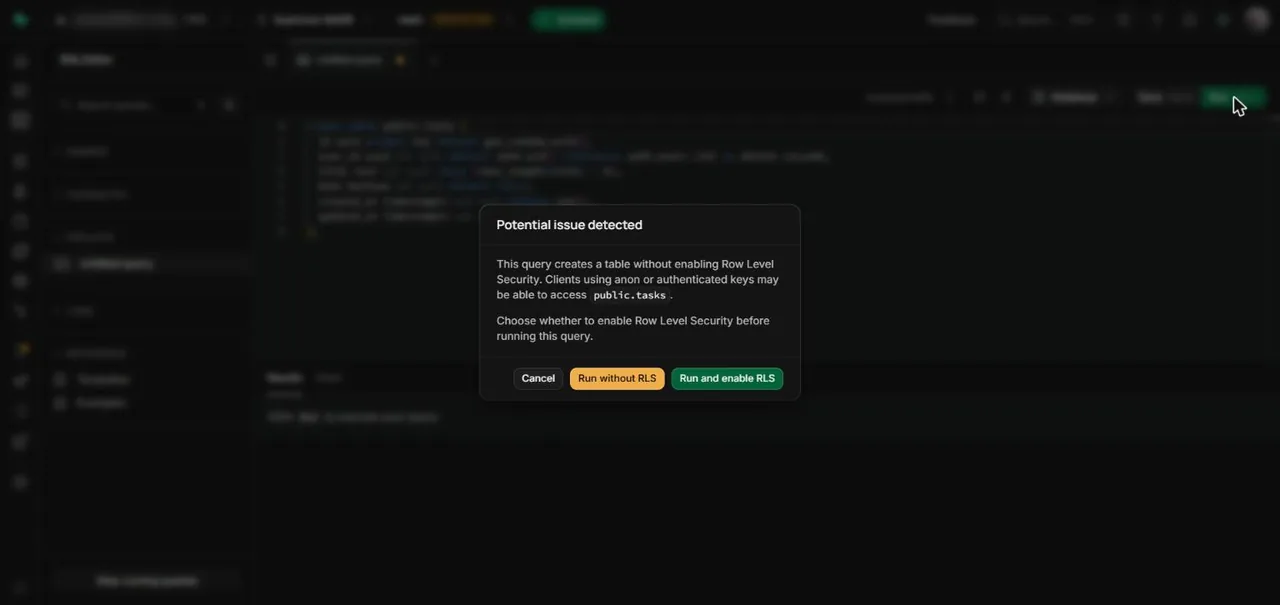
Run and enable RLS creates the table with Row Level Security already on: nobody reaches it until you write policies (section F).
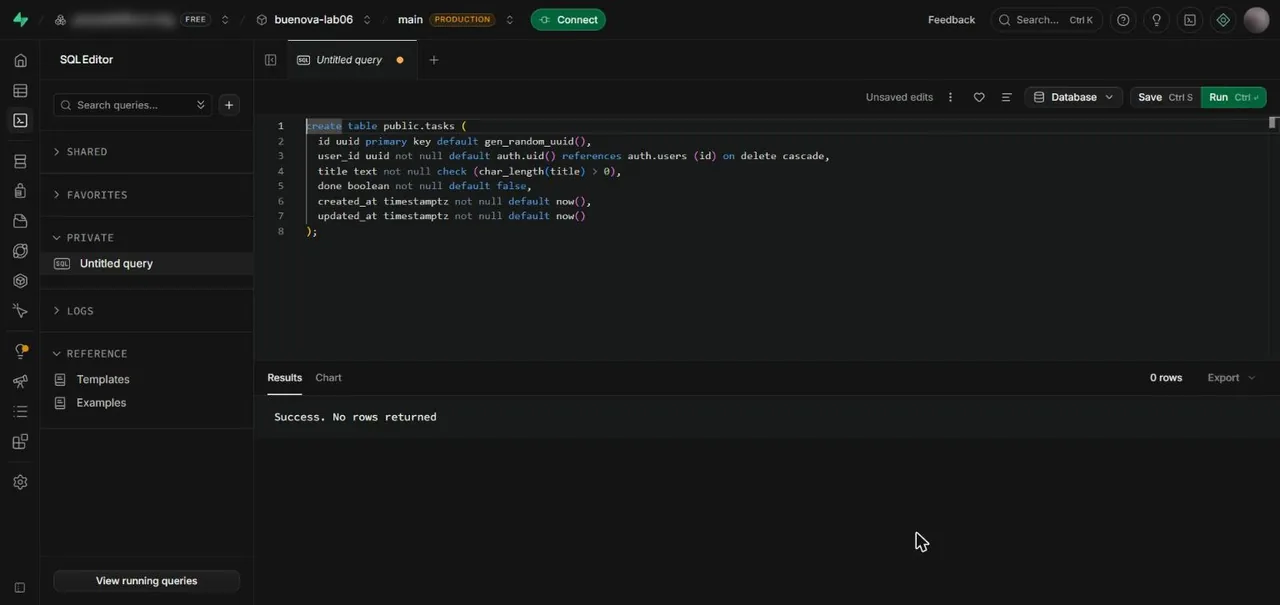
“Success. No rows returned” is the right answer: create table makes a table, it does not read rows.
D. Rows: select, insert, update, delete
Every call returns { data, error }. Check error first.
// read: an array of rows (filters and order are optional)
const { data, error } = await supabase.from('tasks').select('*').eq('done', false).order('created_at');

// add: no rows come back unless you chain .select()
const { error: addError } = await supabase.from('tasks').insert({ title: 'Buy milk' });
const { data: created } = await supabase.from('tasks').insert({ title: 'Read' }).select().single();

// change and remove: always with a filter, so only the rows you mean change
await supabase.from('tasks').update({ done: true }).eq('id', task.id);
await supabase.from('tasks').delete().eq('id', task.id);

if (error) console.warn(error.code, error.message); // e.g. 42501 = blocked by Row Level SecurityAfter the app added tasks, they are in Table Editor → tasks. Every row has the user_id of the user who added it:
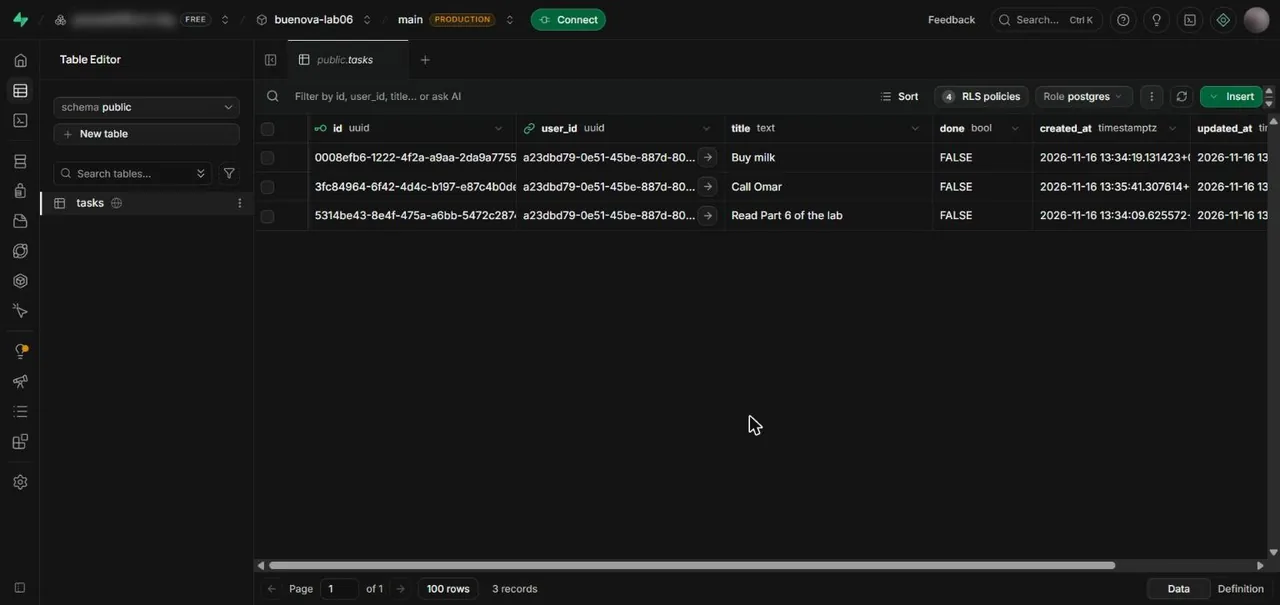
Three tasks sent from a real phone: one row each, all with the same user_id. The bar shows 4 RLS policies and Role postgres: the dashboard reads as the project’s owner, so it sees every row.
E. Auth: users and sessions
Supabase Auth checks the email and password and answers with a session: the access token and the refresh token. supabase-js keeps the session in auth.storage (so the user stays signed in after a restart) and sends the access token with every request.
await supabase.auth.signUp({ email, password });                 // new account
const { data, error } = await supabase.auth.signInWithPassword({ email, password });
const { data: { session } } = await supabase.auth.getSession();  // the saved session, or null
const { data: listener } = supabase.auth.onAuthStateChange((event, session) => {
  // INITIAL_SESSION, SIGNED_IN, SIGNED_OUT, TOKEN_REFRESHED…: update the screen
});
listener.subscription.unsubscribe(); // in the useEffect cleanup
await supabase.auth.signOut();
Try every step, in any order:
On the phone
No session: nobody is signed in.
Saved in auth.storage
(nothing)
Supabase Auth (in the cloud)
No user with this email.
Last request
—
onAuthStateChange(event, session)
- INITIAL_SESSION · session: null
Press Sign up. Then try the other buttons in any order.
Confirm email. A new project asks every new user to confirm their email address: signUp creates the user and sends an email, but returns no session until the user opens the link. For a class project you can turn it off in Authentication → Sign In / Providers, section User Signups: switch off Confirm email and press Save changes. Then signUp signs the user in at once.
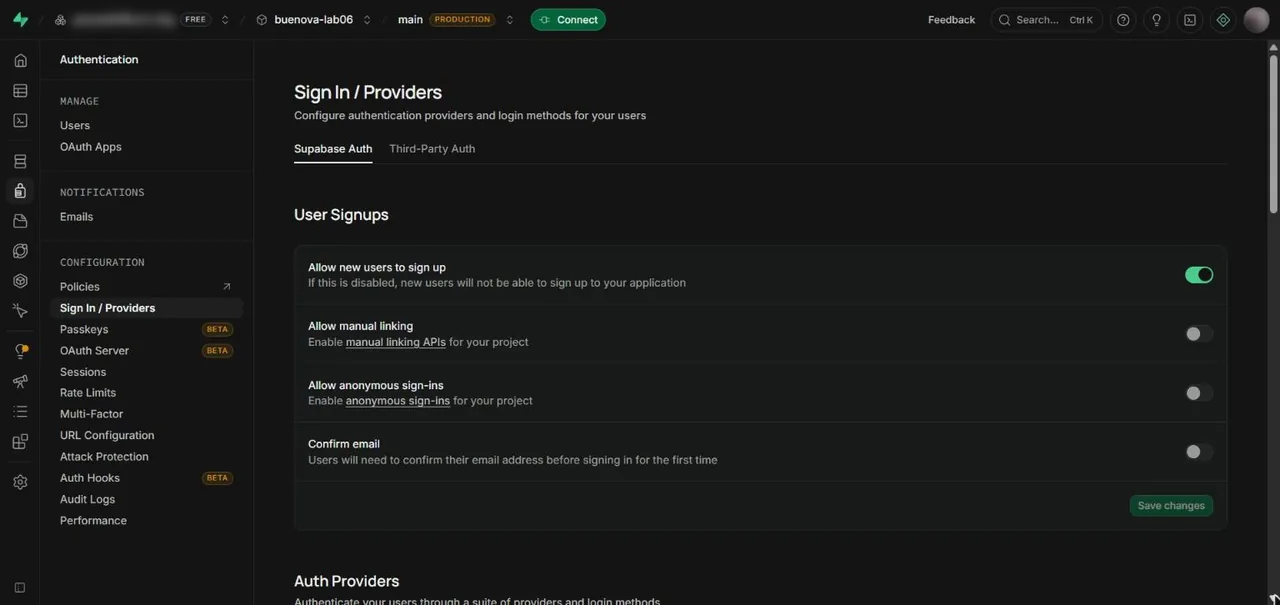
Confirm email is off in this practice project, so a new user is signed in as soon as they sign up. Leave it on in a real app.
Users. Authentication → Users lists every account: its email, when it was created and when it last signed in. You can add a user here (tick Auto Confirm User) or delete one. Passwords are never shown: Supabase keeps only a scrambled form of them (a hash).
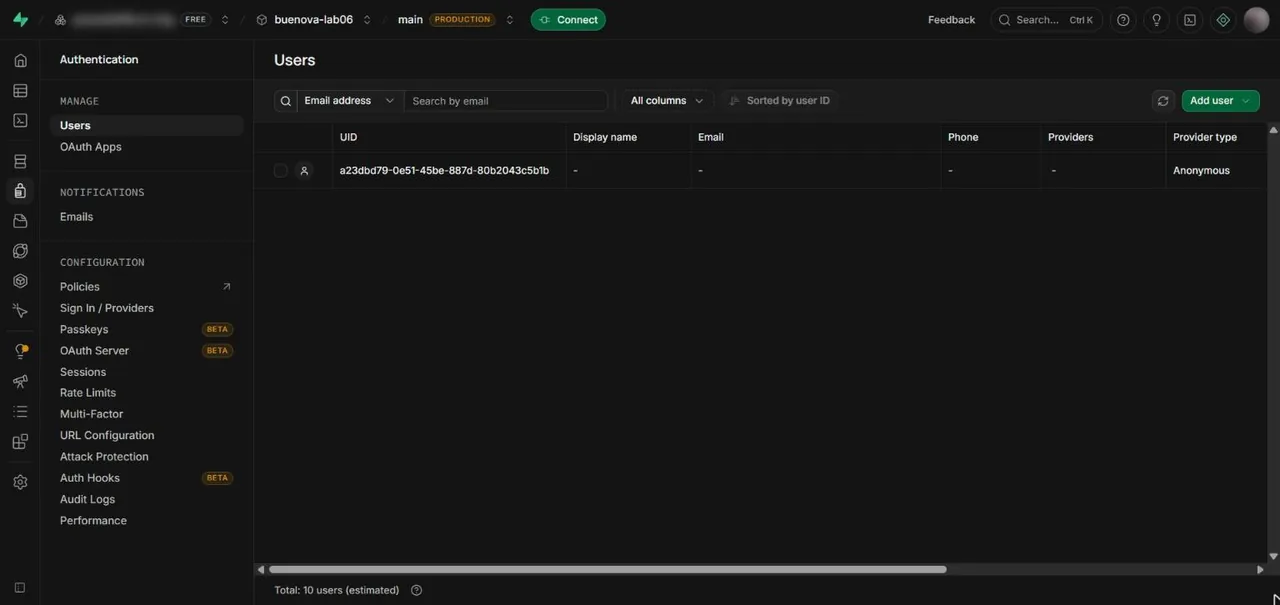
Add user (top right) creates an account by hand. This practice project’s only user signed in as a guest, so its provider type is Anonymous and it has no email; your users will show their email here.
Keeping the session fresh. The access token works for about one hour. supabase-js gets a new one with a timer before it runs out. On a phone, that timer should only run while the app is on the screen — this is in Supabase’s Expo guide:
1import { AppState } from 'react-native';
2import { supabase } from './lib/supabase';
3
4// refresh the session only while the app is on the screen
5AppState.addEventListener('change', (state) => {
6  if (state === 'active') supabase.auth.startAutoRefresh();
7  else supabase.auth.stopAutoRefresh();
8});
AppState tells you whether the app is on the screen (active) or in the background.
- lines 1–2
AppStatetells you whether the app is on the screen (active) or in the background. - lines 5–8 On screen: start the refresh timer. In the background: stop it. When the app comes back, an expired token is refreshed at once.
The quickstart keeps the session in localStorage, which is not encrypted. The session holds the refresh token — a secret (Part 4). Supabase’s Expo tutorial shows how to keep it encrypted, and the final project does exactly that:
1class LargeSecureStore {
2  private async _encrypt(key: string, value: string) {
3    const encryptionKey = crypto.getRandomValues(new Uint8Array(256 / 8));
4    const cipher = new aesjs.ModeOfOperation.ctr(encryptionKey, new aesjs.Counter(1));
5    const encryptedBytes = cipher.encrypt(aesjs.utils.utf8.toBytes(value));
6    await SecureStore.setItemAsync(key, aesjs.utils.hex.fromBytes(encryptionKey));
7    return aesjs.utils.hex.fromBytes(encryptedBytes);
8  }
9
10  async setItem(key: string, value: string) {
11    const encrypted = await this._encrypt(key, value);
12    await AsyncStorage.setItem(key, encrypted);
13  }
14
15  async getItem(key: string) {
16    const encrypted = await AsyncStorage.getItem(key);
17    if (!encrypted) return encrypted;
18    return this._decrypt(key, encrypted); // reads the key from SecureStore
19  }
20}
A new random AES-256 key for each value. The value is encrypted with it, and the small key goes to SecureStore (encrypted by the phone).
- lines 2–8 A new random AES-256 key for each value. The value is encrypted with it, and the small key goes to SecureStore (encrypted by the phone).
- lines 10–13 The encrypted value is big, so it goes to AsyncStorage. On disk it is ciphertext: useless without the key.
- lines 15–19 Reading: take the ciphertext from AsyncStorage, the key from SecureStore, and decrypt. supabase-js uses it as
auth: { storage: new LargeSecureStore() }.
F. Row Level Security
The publishable key is inside every copy of your app, so anyone can call your project’s API. Row Level Security (RLS) makes the database decide, for every row and every request, what this user may do. Checks in your app’s code are not enough: anyone can send requests without your app.
Pick a user, an action and the rules, and watch which rows pass:
The app sends
Postgres checks
| owner (user_id) | title | the rule for this row | result |
|---|
One policy per action. Run this in the SQL Editor after the table:
1alter table public.tasks enable row level security;
2
3create policy "Read own tasks" on public.tasks
4  for select to authenticated
5  using ( (select auth.uid()) = user_id );
6
7create policy "Add own tasks" on public.tasks
8  for insert to authenticated
9  with check ( (select auth.uid()) = user_id );
10
11create policy "Edit own tasks" on public.tasks
12  for update to authenticated
13  using ( (select auth.uid()) = user_id )
14  with check ( (select auth.uid()) = user_id );
15
16create policy "Delete own tasks" on public.tasks
17  for delete to authenticated
18  using ( (select auth.uid()) = user_id );
RLS on: from now on nothing is allowed through the API until a policy allows it.
- lines 1–1 RLS on: from now on nothing is allowed through the API until a policy allows it.
- lines 3–5 Read:
usingis checked on every row that exists. A row is returned only when itsuser_idis the signed-in user. - lines 7–9 Add:
with checkis checked on the new row. Nobody can add a row for someone else. - lines 11–14 Edit:
usingpicks the rows you may change,with checkchecks the row after the change (you cannot give your task to someone else). - lines 16–18 Delete: only
using— there is no new row to check.
for selectthe operation it allowsto authenticatedonly signed-in usersusing ( … )checked for every existing row: which rows they may see or changewith check ( … )checked for every new or changed row: may it be saved?(select auth.uid())the id of the user who sent the request
In the dashboard, Database → Policies lists every table: whether RLS is on, and each policy with its command (SELECT, INSERT, UPDATE, DELETE) and the roles it applies to. It also offers to turn RLS on automatically for every new table.
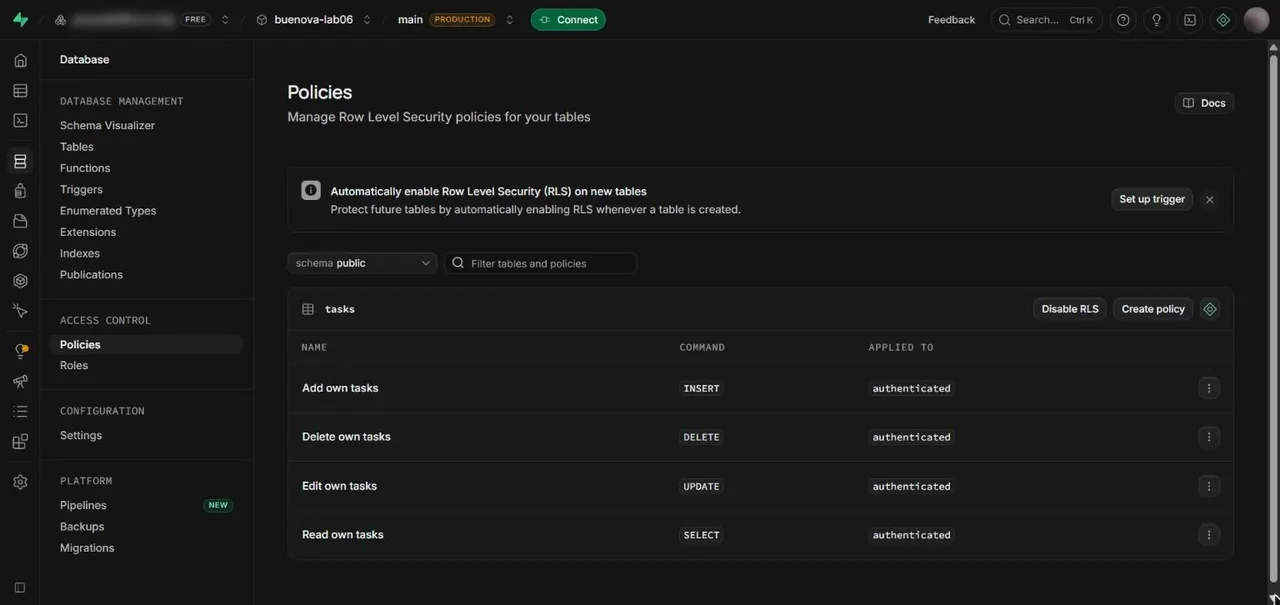
The four policies of section F, one per command, all for authenticated. Disable RLS would open the table to every request: never do it for private data.
Two things that surprise everyone:
- A read that RLS blocks is not an error: you get
data: []anderror: null. An empty list often means “not signed in” or “no select policy”. - The SQL Editor and the Table Editor run as the project’s owner, so they skip RLS and show every row. Test your policies from the app.
G. Storage: files in buckets
A bucket is a folder for files. A public bucket gives each file a fixed URL anyone can open: right for profile photos. A private bucket gives signed URLs that stop working after the number of seconds you choose: right for personal documents. Storage has its own policies; a common rule is “each user writes only in the folder named after their id”.
1insert into storage.buckets (id, name, public)
2values ('avatars', 'avatars', true);
3
4create policy "Add to your own folder" on storage.objects
5  for insert to authenticated
6  with check ( bucket_id = 'avatars'
7    and (storage.foldername(name))[1] = (select auth.uid())::text );
8
9create policy "See your own folder" on storage.objects
10  for select to authenticated
11  using ( bucket_id = 'avatars'
12    and (storage.foldername(name))[1] = (select auth.uid())::text );
13
14create policy "Replace in your own folder" on storage.objects
15  for update to authenticated
16  using ( bucket_id = 'avatars'
17    and (storage.foldername(name))[1] = (select auth.uid())::text );
Creates the bucket avatars. public = true: anyone with a file’s URL can open it (no policy needed to view it).
- lines 1–2 Creates the bucket avatars.
public = true: anyone with a file’s URL can open it (no policy needed to view it). - lines 4–7 Uploading needs an insert policy on
storage.objects.storage.foldername(name)[1]is the first folder of the path: it must be the user’s id. - lines 9–17
upsert: true(replace a photo) also needs the select and update policies.
import { decode } from 'base64-arraybuffer';

// the picker gives the photo as base64 text (base64: true); Storage wants bytes
const result = await ImagePicker.launchImageLibraryAsync({ mediaTypes: ['images'], base64: true });
const photo = result.assets![0];
const path = userId + '/avatar.png';

const { error } = await supabase.storage
  .from('avatars')
  .upload(path, decode(photo.base64!), { contentType: 'image/png', upsert: true });

const { data } = supabase.storage.from('avatars').getPublicUrl(path);   // public bucket
const { data: signed } = await supabase.storage.from('documents').createSignedUrl(path, 60); // private, 60 s
await supabase.storage.from('avatars').remove([path]);| What | Database | Storage |
|---|---|---|
| Holds | Rows: text, numbers, dates | Files: photos, PDFs, videos |
| Read with | from(table).select() | A URL, or download(path) |
| Protected by | RLS policies on the table | Bucket type + policies on storage.objects |
| Together | keeps the file’s path in a column… | …and Storage keeps the file itself |
Which one would you use?
- A user’s profile photo.
A file belongs in a bucket; the profile row keeps its path or URL.
- The task title and whether it is done.
Small values in columns: database rows.
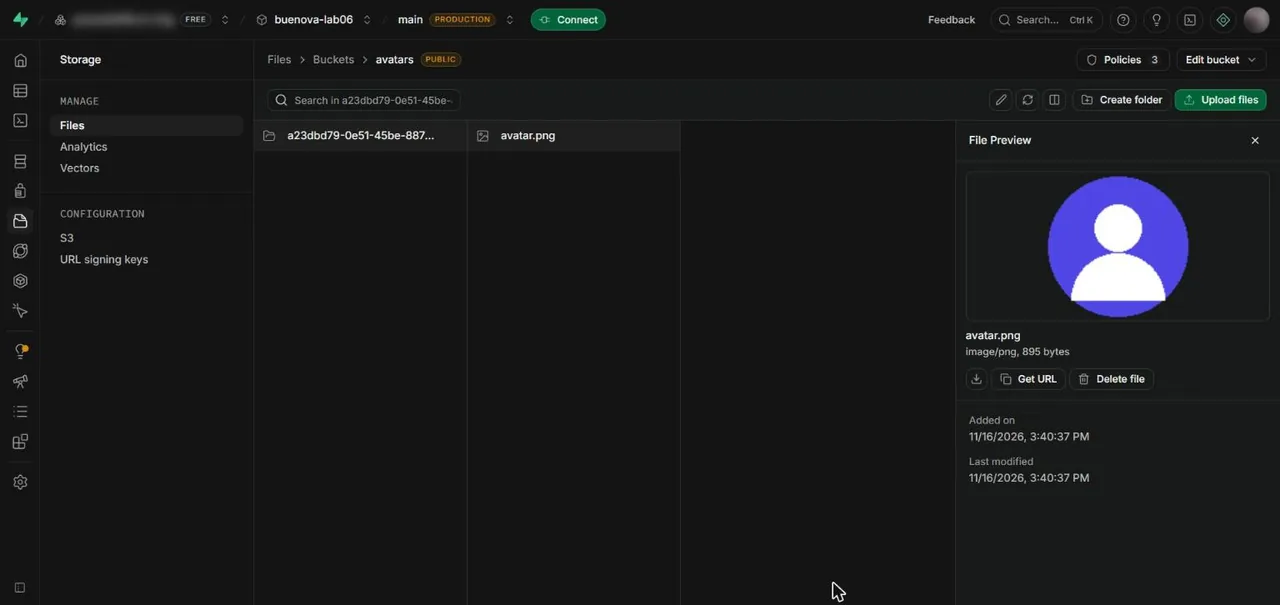
The path is the folder (the user’s id) and the file name. The bucket is marked Public, so the file has a fixed URL.
H. Realtime: changes sent to the phone
Until now the phone asked for the rows (select). With Realtime, Supabase tells the phone when a row changes. The phone opens a channel — a connection that stays open — and says what it wants to hear, for example “new rows in tasks”. When a row is added (by this phone, by the same user’s tablet, or in the dashboard), Realtime sends it to every phone that listens.
Four rules:
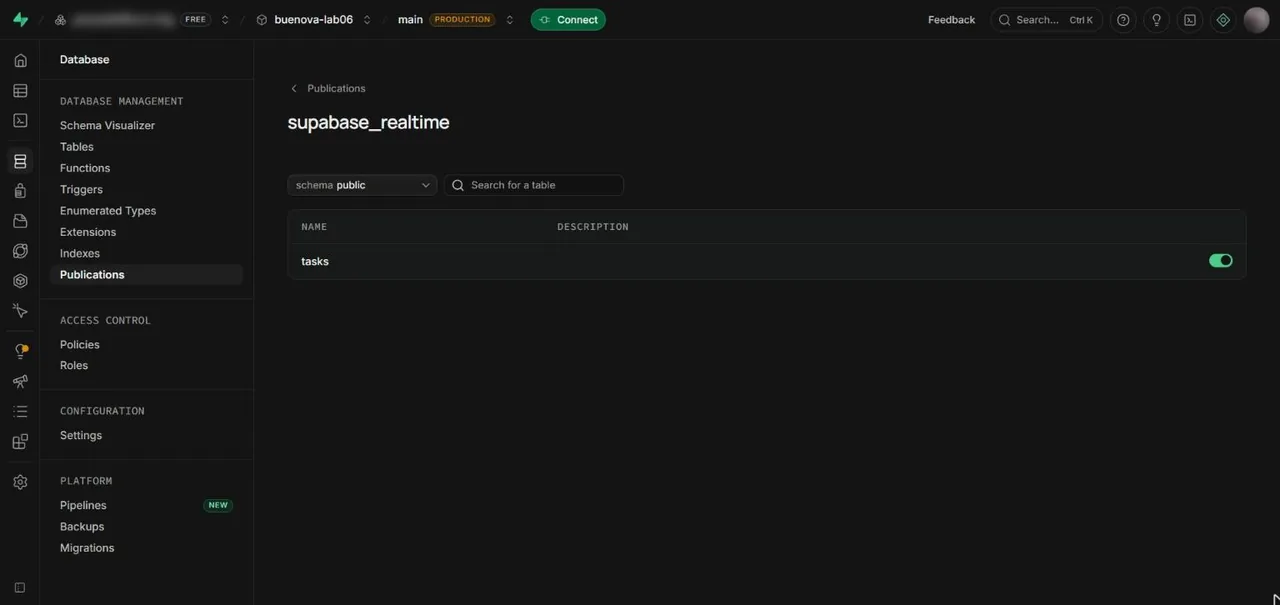
- A table sends changes only if it is in the supabase_realtime publication. Turn it on once, in the SQL Editor:
alter publication supabase_realtime add table public.tasks;— or in Database → Publications → supabase_realtime. - RLS still applies: a phone only receives rows its user may read.
- Realtime does not keep changes for later. A phone that was offline must load the list again with
selectwhen it is back (Part 6 does this). - Close what you open: remove the channel in the
useEffectcleanup, or every visit to the screen adds one more listener.
Mona’s tablet
- Read Part 5 of the lab
Database
tasks · INSERT saves the row
Realtime
who may see this row (RLS)? which phones listen?
Mona’s phone
- Read Part 5 of the lab
The phone’s code
useEffect(() => {
  const channel = supabase
    .channel('my-tasks')
    .on('postgres_changes',
      { event: 'INSERT', schema: 'public', table: 'tasks' },
      (payload) => setTasks((list) => [...list, payload.new as Task]))
    .subscribe();
  return () => { supabase.removeChannel(channel); };
}, []);
The payload the callback gets
—
Press Mona adds a task on her tablet and watch the phone.
1useEffect(() => {
2  const channel = supabase
3    .channel('my-tasks')
4    .on(
5      'postgres_changes',
6      { event: 'INSERT', schema: 'public', table: 'tasks' },
7      (payload) => setTasks((list) => [...list, payload.new as Task]),
8    )
9    .subscribe((status) => console.log('realtime:', status));
10
11  return () => {
12    supabase.removeChannel(channel);
13  };
14}, []);
channel('my-tasks') makes a channel. The name is yours: it only has to be different from your other channels.
- lines 2–3
channel('my-tasks')makes a channel. The name is yours: it only has to be different from your other channels. - lines 4–8
postgres_changes: listen to the database.event: 'INSERT'(orUPDATE,DELETE,*) and the table.payload.newis the new row. - lines 9–9
subscribeopens the channel. The status becomesSUBSCRIBEDwhen it is listening (orCHANNEL_ERROR, for example offline). - lines 11–13 The cleanup: when the screen closes,
removeChannelstops listening and closes the connection.
I. Logs and errors
When something fails, read error first. The code says where to look:
| You get | It means | Look at |
|---|---|---|
error.code 42501 | RLS refused an insert or update | your insert/update policy, and whether the user is signed in |
data: [], error: null | RLS hid every row | the select policy, and whether the user is signed in |
PGRST116 | .single() got no row (or more than one) | the filter; use .maybeSingle() when “none” is fine |
23505 | a row with this id already exists | send it with upsert |
PGRST204 | the table has no column with this name | the spelling of the column |
Invalid login credentials | wrong email or password | what the user typed; whether the user exists |
TypeError: Network request failed | the phone is offline | NetInfo (Part 6) |
The dashboard keeps a record of every request in Logs → API Gateway (type rest/v1 in the search to see only your table requests). Each line shows the time, the method and path (for example POST /rest/v1/tasks) and the status code: 200/201 worked, 401 and 403 were refused by Auth or RLS, 400 means the request itself was wrong, 5xx is a problem on the server.
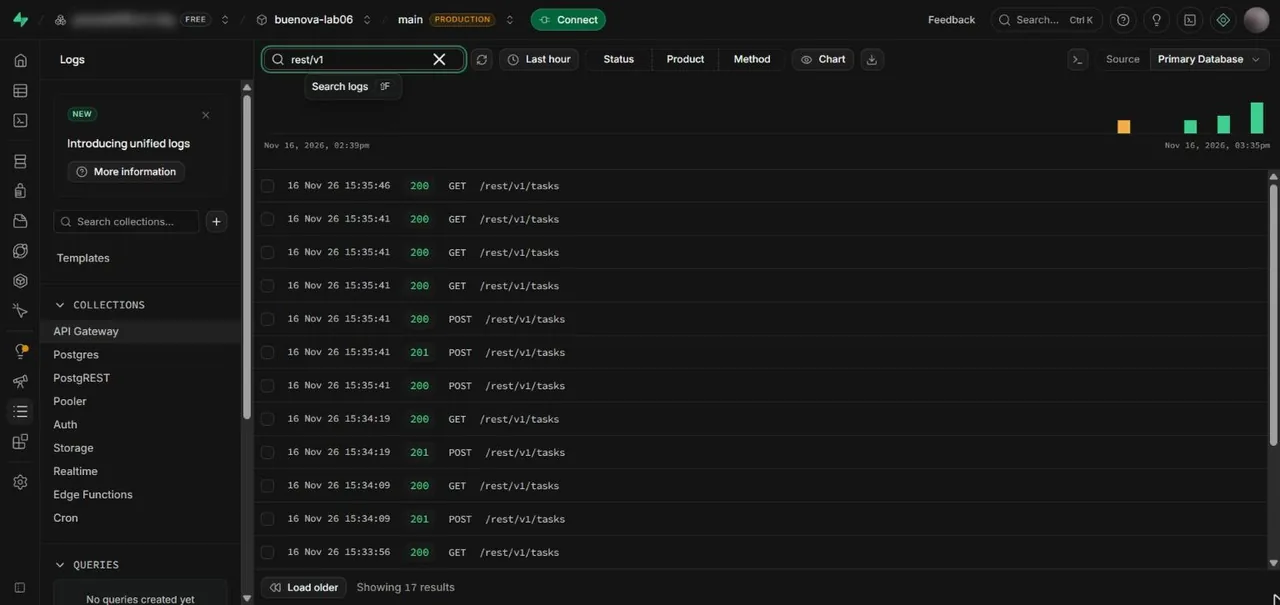
The phone’s requests: POST (add, 201 Created) and GET (read, 200 OK). Open the logs when the app gets an error you do not understand: the request that failed is there, with its status.
Checkpoint
Your app signs users in and keeps them signed in, reads and writes their rows, uploads a file, and hears new rows live. Row Level Security — not your app — decides what each user may touch. In the dashboard you can find every table, user, file, policy and request.
Part 6: Local and cloud together: offline basics
21 min
Real apps use both: the phone for speed and for working offline, the cloud for sharing and for keeping data safe when a phone is lost.
Cloud-first
Send to the server, show the result when it answers. Simple, but nothing works without a connection.
Local-first
Save on the phone and show it at once; send to the server later. Works offline. This part builds a simple version.
The plan for each new or changed task:
- Save it in SQLite with a column synced = 0: it is a pending operation, waiting to be sent.
- NetInfo tells the app whether the phone is online, and when the connection comes back.
- When online: send every row with
synced = 0. If the request fails, they staysynced = 0and are sent next time (a retry). - Only after Supabase answered without an error:
synced = 1.
import NetInfo from '@react-native-community/netinfo';

const state = await NetInfo.fetch();                 // once: state.isConnected
const unsubscribe = NetInfo.addEventListener((state) => {
  if (state.isConnected) syncPending();              // the connection is back: send what waits
});
// const net = useNetInfo();                         // or as a hook inside a component
Duplicates. Sometimes the server saves the row but its answer never reaches the phone. The phone thinks it failed and sends the task again. With insert, the cloud now has the task twice. The fix: the phone gives each task its own id (Crypto.randomUUID()), and sends with upsert on that id — the second send updates the same row.
On the phone · SQLite
- No tasks yet.
syncPending()
SELECT … WHERE synced = 0upsert(rows, { onConflict: 'id' })UPDATE … SET synced = 1
Waiting.
In the cloud · Supabase tasks
- No rows yet.
Add a task. Then switch Wi-Fi off, add more, and switch it on again.
1export async function syncPending() {
2  const db = await dbPromise;
3  const waiting = await db.getAllAsync('SELECT * FROM tasks WHERE synced = 0');
4  if (waiting.length === 0) return 0;
5
6  const { error } = await supabase
7    .from('tasks')
8    .upsert(waiting.map((t) => ({ id: t.id, title: t.title, done: t.done === 1 })), { onConflict: 'id' });
9  if (error) throw error;
10
11  for (const t of waiting) {
12    await db.runAsync('UPDATE tasks SET synced = 1 WHERE id = ?', t.id);
13  }
14  return waiting.length;
15}
Read only the rows that wait: synced = 0. Nothing waiting: stop.
- lines 2–4 Read only the rows that wait:
synced = 0. Nothing waiting: stop. - lines 6–8
upsertwithonConflict: 'id': the phone’s id is sent, so a row that already exists is updated instead of added again. - lines 9–9 On an error,
throw: the rows staysynced = 0, and the next sync tries again. - lines 11–13 Only now, after a successful answer: mark them
synced = 1.
Conflicts. If the same task is changed on two phones while both are offline, the last one to sync wins (the final project keeps an updated_at time for this). Apps that must not lose any change merge them or ask the user — that is a full sync engine, and it is beyond this lab. What you build here is the base those engines start from.
The final project on a real phone. Left: the Wi-Fi is off and a new task waits on the phone. Right: the Wi-Fi is back, the task was sent once, and Supabase has it:
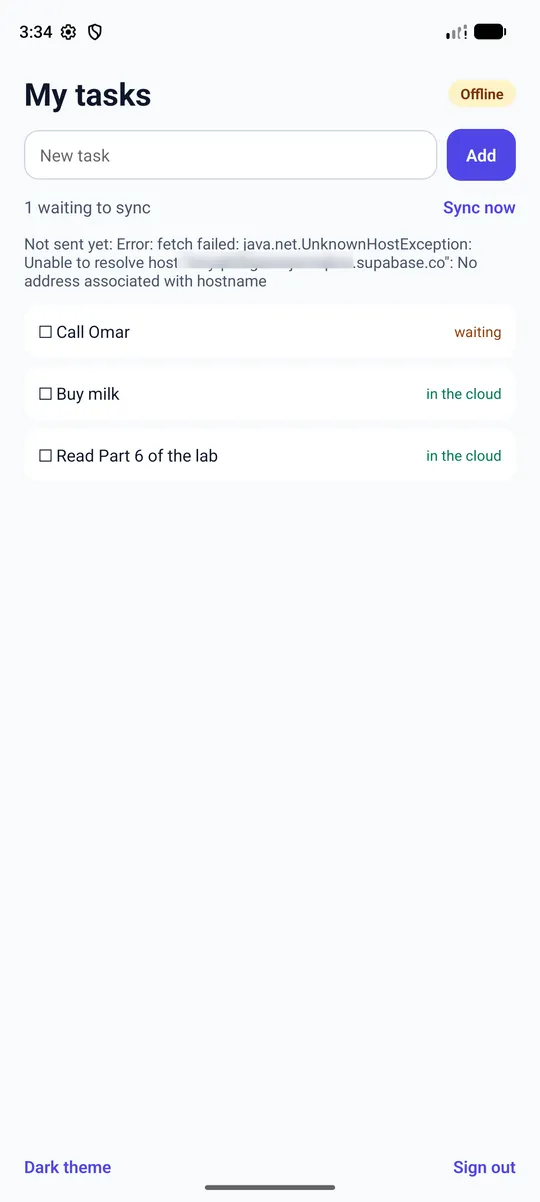
Offline: saved on the phone
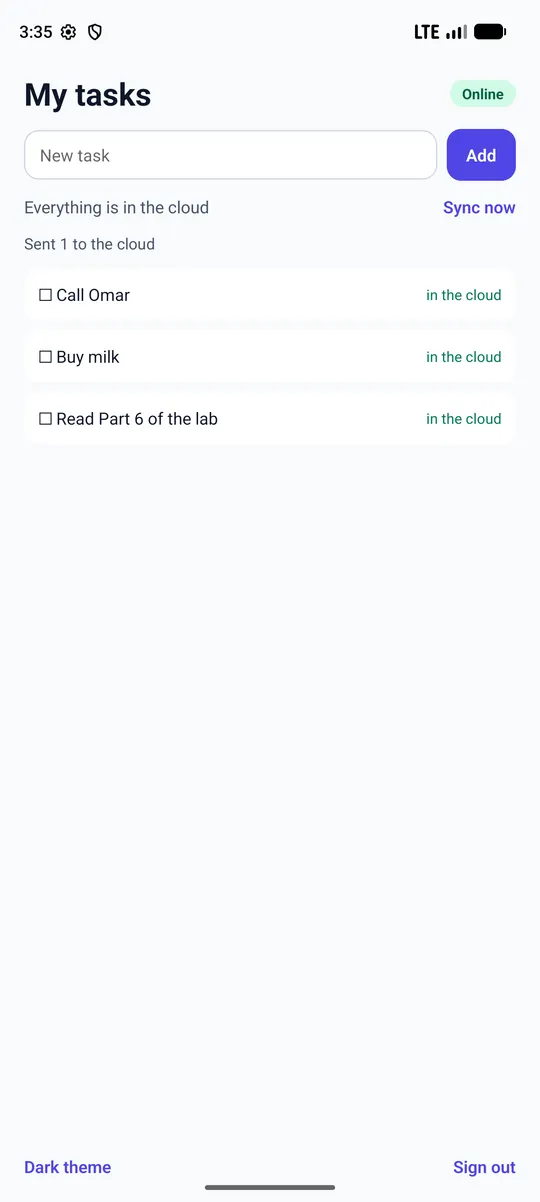
Online again: sent once
Realtime (Part 5 H) does not replace this: it only works while the phone is online. The sync plan is what keeps the app working without a connection.
CheckpointParts 1–6 done
The app works offline: it saves on the phone at once, waits with synced = 0, and sends each task once when the phone is back online.
Part 7: Final project: Offline-Ready Tasks App
No extra time (built in the exercises)
The final project is the exercises put together in one app. Nothing new to learn: open it, read each step, and connect your own Supabase project.
Requirements
- A theme setting that survives a restart (AsyncStorage)
- Tasks saved on the phone at once, with an id made on the phone (SQLite)
- The session saved encrypted (SecureStore + AsyncStorage:
LargeSecureStore) - Sign-in, and the tasks in your Supabase project, protected by Row Level Security
- Offline: tasks wait with
synced = 0, are sent when online, once each
- App.tsxthe screens: sign in, and the tasks
- lib/
- supabase.tsthe client (Part 5) + the encrypted session
- largeSecureStore.tsSecureStore + AsyncStorage (Part 4)
- preferences.tsthe theme in AsyncStorage (Part 2)
- db.tsthe tasks table in SQLite (Part 3)
- sync.tssyncPending + pullFromCloud (Part 6)
- supabase/schema.sqlrun once in your project’s SQL Editor
- .envEXPO_PUBLIC_SUPABASE_URL + _PUBLISHABLE_KEY
Step 1 · Preference
lib/preferences.ts: the theme with getItem / setItem.
Step 2 · Tasks on the phone
lib/db.ts: id, title, done, synced, updated_at.
Step 3 · Encrypted session
lib/largeSecureStore.ts as auth.storage.
Step 4 · Your project
Run schema.sql, add a user, fill .env.
Step 5 · Sync
lib/sync.ts: push what waits, then pull the cloud’s tasks.
Step 6 · Airplane mode
Wi-Fi off, add, Wi-Fi on: one row each.
Configuration. In your Supabase project: run supabase/schema.sql in the SQL Editor; add a user in Authentication → Users → Add user (tick Auto Confirm User); copy the Project URL and the publishable key into .env.
On a PC (Expo Go), the same files run in a new project:
Test it (in the Code Editor emulator or on your phone):
- Sign in, add two tasks: each shows “in the cloud”, and Table Editor → tasks in Supabase has one row each.
- Switch Wi-Fi off (on a phone: airplane mode). Add a task: it shows “waiting”, and nothing reaches Supabase.
- Switch Wi-Fi on: it changes to “in the cloud”, still one row each.
- Restart the app: still signed in, the theme stayed, the tasks are read from SQLite.
- Sign out and sign in again: the tasks come back from the cloud.
CheckpointLab 06
You can choose where every piece of data belongs, and build it: AsyncStorage or MMKV for settings, SQLite for lists, SecureStore for secrets, Supabase for shared data and files — with Row Level Security — and the phone and the cloud working together offline.
Expected result
My tasks
Online · 1 waiting to sync
☐ Buy milk — waiting
☑ Read Part 6 — in the cloud
Sync now · Dark theme · Sign out
What you should see
An Offline-Ready Tasks App: a new task is saved on the phone at once (SQLite), the theme is remembered (AsyncStorage), the session is encrypted (SecureStore), and the tasks reach your Supabase project when the phone is online, one row each.
Stuck?
AsyncStorage holds "[object Object]"
An object was saved without JSON.stringify. AsyncStorage keeps text only.
Save JSON.stringify(value) and read it back with JSON.parse(text).
"SQLite error: no such table: tasks"
A query ran before the CREATE TABLE, or the table name is misspelled.
Run CREATE TABLE IF NOT EXISTS … once when the database opens, and await it before the first query.
"NOT NULL constraint failed" from SQLite
An INSERT left out a column marked NOT NULL.
Give that column a value, or a DEFAULT in the CREATE TABLE.
"Invalid key provided to SecureStore"
The key has a space or another character SecureStore does not allow.
Keys may contain letters, numbers, ".", "-" and "_" only, for example auth.token.
MMKV: "not supported in Expo Go", or a missing native module
MMKV is native code that Expo Go does not include.
Use a development build: npx expo prebuild, then npx expo run:android (or run:ios). Or use AsyncStorage, which works in Expo Go.
Supabase returns an empty list, but the table has rows
Row Level Security is on and no policy allows this user to read them — or nobody is signed in.
Sign in first, and add a for select policy (Part 5). With RLS on, no policy means no rows.
"new row violates row-level security policy for table" (code 42501)
No policy allows this insert or update, or the row would belong to someone else.
Add a for insert … with check ((select auth.uid()) = user_id) policy, and let the table fill user_id with auth.uid().
"The resource already exists" when uploading
A file with this path is already in the bucket.
Add upsert: true to the upload options (and the update and select storage policies), or use a new path.
"Invalid supabaseUrl" or an undefined key
The .env names do not start with EXPO_PUBLIC_, or Expo was not restarted after editing .env.
Use EXPO_PUBLIC_SUPABASE_URL and EXPO_PUBLIC_SUPABASE_PUBLISHABLE_KEY, then stop and run npx expo start again.
"Email not confirmed" when signing in
New Supabase projects ask users to confirm their email first.
Click the link in the email, or create the user in Authentication → Users → Add user with “Auto Confirm User” ticked.
"Network request failed"
The phone has no connection (or the emulator’s Wi-Fi is off).
Expected when offline: the tasks stay synced = 0 and are sent when NetInfo reports the connection is back.
Realtime: the channel says SUBSCRIBED, but no change ever arrives
The table is not in the supabase_realtime publication, or Row Level Security does not let this user read the row.
Run alter publication supabase_realtime add table public.tasks; (or Database → Publications), and check the select policy: Realtime only sends rows the user may read.
Realtime: every new task appears two or three times
A new channel opens each time the screen opens, and the old ones are never removed.
Return a cleanup from the useEffect: return () => { supabase.removeChannel(channel); };
The user is signed out after every restart
The client has no auth.storage, or the screen never reads the saved session.
Give createClient a storage (localStorage from expo-sqlite, or LargeSecureStore) and set the user from onAuthStateChange: it reports the saved session at the start.
Still stuck? Search the troubleshooting center or ask your TA.
End of lab · attendance
Check in for Lab 06
Checking whether check-in is open…